
Top Notion Widgets
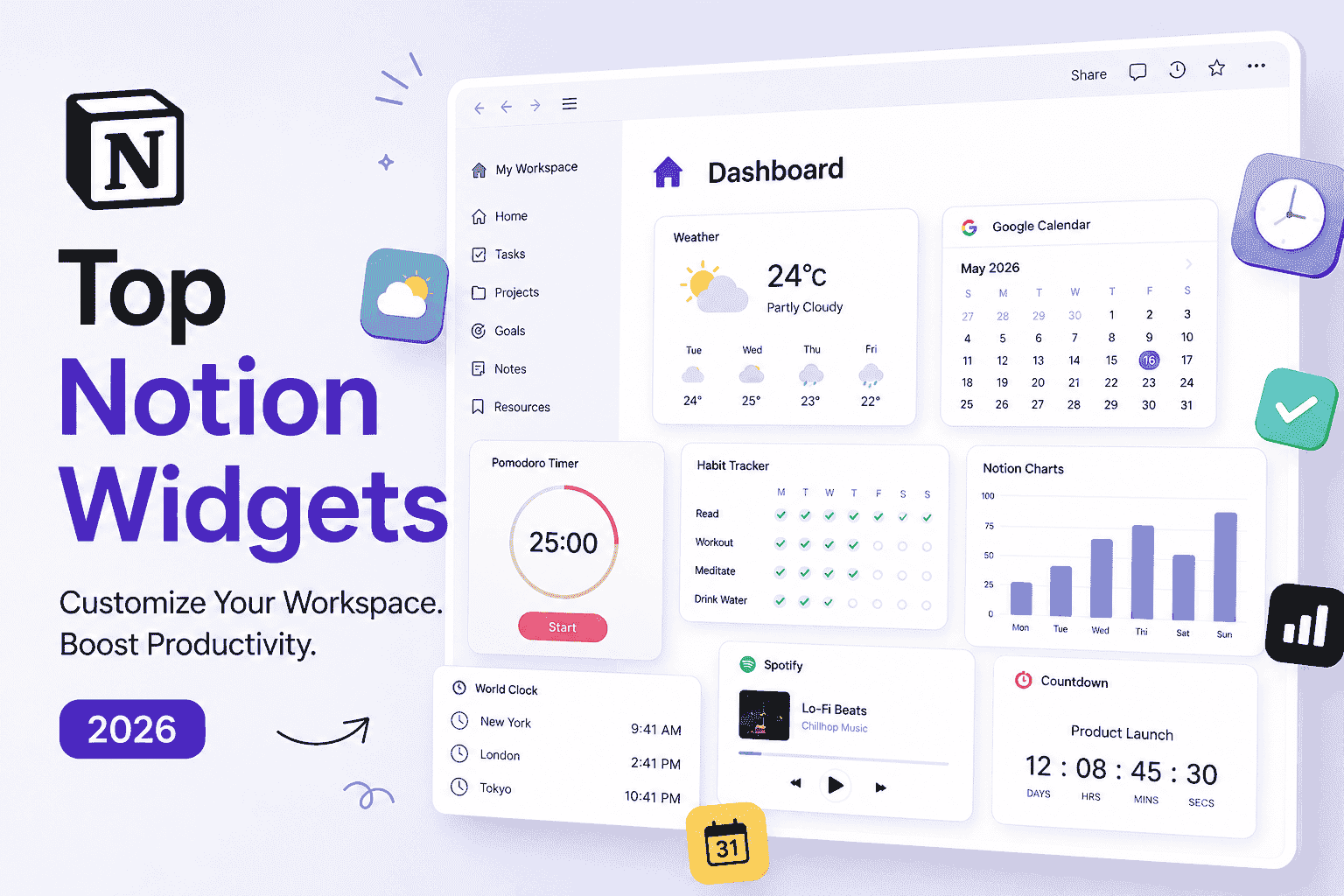
The best Notion widgets extend Notion with features it doesn’t include natively, including live weather, calendars, countdown timers, habit trackers, clocks, charts, and music players. With the right widgets, you can build a workspace that’s more informative, organized, and personalized without writing code.
This guide covers the most useful Notion widgets availabl today, who they’re best for, how to add them, and the trade-offs to consider before embedding third-party tools.
Top Notion Widgets Compared
| Widget | Best For | Free | Provider |
|---|---|---|---|
| Weather Widget | Daily planning | ✅ | Indify |
| Google Calendar | Scheduling | ✅ | Native / Indify |
| Pomodoro Timer | Focus | ✅ | Blocs |
| Analog Clock | Time zones | ✅ | WidgetBox |
| Habit Tracker | Building routines | Partial | Blocs |
| Countdown | Deadlines | ✅ | Indify |
| Spotify Embed | Music | ✅ | Native |
| Notion Charts | Analytics | Partial | Notion Charts |
15 Top Notion Widgets
The widgets below are widely used because they solve practical problems rathar than simply making a homepage look better. Most are free to use, while some offer premium customization or advanced features.
Since widget availability and pricing can change over time, it’s a good idea to review each provider’s official website before adding a widget to your workspace.
1. Indify Weather
Indify’s Weather widget displays current conditions and forecasts in a clean, customizable layout that blends well with most Notion setups. It’s ideal for daily planners, travel pages, and personal homepages. The free version covers the essentials, while premium options offer additional customization.
2. Google Calendar
Google Calendar remains one of the most useful embeds for managing meetings and deadlines inside Notion. The standard embed is read-only and requires a public calendar, but it provides a convenient way to keep your schedule visible without switching tabs.
3. Spotify Embed
Spotify embeds let you play playlists, albums, or podcasts directly from a Notion page. It’s especially popular for study setups, creative workspaces, and personal hubs where background music helps maintain focus.
4. Pomofocus Timer
Pomofocus brings the Pomodoro Technique into Notion by combining work sessions with scheduled breaks. It’s a simple yet effective widget for students, writers, developers, and anyone looking to improve focus during long work sessions.
5. WidgetBox Clock
WidgetBox offers analog and digital clock widgets, including world clocks for multiple time zones. They’re particularly useful for remote teams, freelancers working with international clients, or anyone who needs quick access to different time zones.
6. Life Progress Bar
The Life Progress Bar visualizes progress toward a goal or milestone, making long-term objectives easier to track. Many users include it on personal homepage to stay motivated while working toward fitness, learning, or career goals.
7. Countdown Widget
Countdown widgets display the remaining time until an important date, such as an exam, product launch, holiday, or project deadline. Keeping upcoming milestones visible helps maintain focus on high-priority tasks.
8. WeatherWidget.io
WeatherWidget.io provides another reliable weather option with several display styles and layouts. It’s a good alternative for users who want more design flexibility while still seeing live weather information inside Notion.
9. Notion Charts
Notion Charts transforms database information into bar charts, line graphs, pie charts, and other visual reports. Teams often use it for KPI tracking, project reporting, and business workspace where data is easier to understand visually.
10. Witeboard
Witeboard adds a collaborative whiteboard directly to Notion, making it easy to sketch ideas, create diagrams, or brainstorm with teammates. It’s particularly useful for workshops, project planning, and remote collaboration.
11. Habit Tracker
Habit tracking widgets help monitor recurring activities like reading, exercising, journaling, or meditation. Seeing daily progress inside your workspace can make routines easier to maintain without relying on a separate productivity app.
12. Quote Widget
Quote widgets display motivational or inspirational quotes that refresh automatically. While not essential, many users enjoy adding one to personal dashboards for a more personalized workspace.
13. Google Maps Embed
Embedding Google Maps into Notion is useful for travel plans, event pages, real estate projects, or client visits. It keeps locations easily accessible without opening another application.
14. YouTube Embed
YouTube embeds allow tutorials, training videos, presentations, or recorded meetings to be viewed directly within Notion. This is especially useful for learning resources, documentation, and knowledge bases.
15. Apption Widget Library
Rather than offering a single widget, Apption provides one of the largest collections of widgets for Notion, including calendars, clocks, calculators, weather tools, progress bars, and aesthetic components. It’s a good starting point for users who want to explore different customization options in one place.
Which Notion widgets should you start with?
If you’re new to Notion widgets, begin with a Google Calendar for scheduling, a Pomodoro Timer for focus, and a Weather widget for daily planning. As your workspace grows, you can add specialized tools like Notion Charts, Habit Trackers, or Witeboard based on your workflow. Starting small keeps your page clean, responsive, and easier to maintain.
Benefits and Limitations
Benefits of Using Notion Widgets
- Add live content without coding
- Reduce app switching
- Improve dashboard customization
- Support productivity and planning
Limitations
- Most rely on third-party services
- Too many embeds can slow pages
- Some require public links or paid plans
- Privacy depends on the widget provider
What are Notion widgets?
Notion widgets are third-party embeds that add live content such as calendars, clocks, weather, habit trackers, music players, and charts to a Notion page. They let you customize dashboards without writing code.
How to Add a Notion Widget
Adding a Notion widget is simple. Most providers generate an embed link that you paste into Notion using the /embed block. If you’re new to embedding content, Notion’s official embed documentation explains how embedded content works and what types of links are supported. Once embedded, the widget behaves like any other block, you can resize or reposition it as needed. Services like Spotify, Google Calendar, and weather widgets work the same way, although some require a public link or account permissions.
Best Notion Widget Platforms
| Platform | Best For |
|---|---|
| Indify | Weather, clocks, calendars |
| Apption | Largest widget library |
| WidgetBox | Stylish clocks |
| Blocs | Habit tracking & Pomodoro |
| Witeboard | Collaborative whiteboards |
These platforms offer different strengths. Indify focuses on clean productivity widgets, Apption has one of the largest libraries, while WidgetBox specializes in clocks and visual widgets. If you’re just getting started, Indify is a practical first choice because it covers the most commonly used widgets in one place. Users looking for more variety can explore Apption or WidgetBox.
Top Notion Widget Categories
No single widget fits every workflow. Students, remote teams, creators, and businesses all benefit from different types of widgets, which is why choosing the right category matters.
| Category | Popular Widgets | Best For |
|---|---|---|
| Productivity | Pomodoro Timer, Habit Tracker, Progress Bar | Staying focused and building routines |
| Planning | Google Calendar, Countdown | Managing schedules and deadlines |
| Information | Weather, World Clock | Daily dashboards |
| Analytics | Notion Charts, Data Jumbo | Visualizing data and KPIs |
| Media | Spotify, YouTube | Music, videos, and learning resources |
| Collaboration | Witeboard | Brainstorming and team planning |
Most users don’t need a widget from every category. Start with one or two that match your daily workflow, then expand as needed. Keeping your workspace focused also improves readability and loading speed.
Performance and Privacy Considerations
Every widget loads content from another website, so adding too many embeds can slow large pages.
It’s also a good idea to remove widgets you no longer use, since each additional embed can increase page loading time and make large dashboards harder to manage.
Only use trusted providers, avoid embedding confidential information, and review permissions before connecting services like Google Calendar. If performance becomes an issue, remove widgets you rarely use.
Choosing the Right Widget
Choose widgets that solve a specific problem instead of decorating your workspace.
Before adding another widget, Ask yourself:
- Do I check this information every day?
- Does it replace opening another app?
- Does it load quickly?
- Is the provider trustworthy?
If the answer is “no,” skip it.
Final Thoughts
The best Notion widgets make information easier to access without adding unnecessary complexity. Start with essentials like a calendar, weather widget, or Pomodoro timer, then expand only if each widget genuinely improves your workflow. Prioritize widgets that improve your workflow instead of adding them purely for aesthetics. A small collection of well-chosen widgets usually creates a better Notion workspace than a page filled with dozens of embeds. The top Notion widgets aren’t necessarily the most visually impressive, they’re the ones that make your daily workflow faster and more organized.
FAQs
What is a Notion widget?
A Notion widget is an embeddable tool that adds live content like clocks, calendars, weather, or timers to a Notion page using an embed link.
Are Notion widgets free?
Many are free, including options from Apption and WidgetBox. Some providers offer premium customization or additional widgets through paid plans.
How do I add a widget?
Copy the widget’s embed link, type /embed in Notion, paste the URL, and select Create embed.
Are widgets safe?
They are generally safe when using trusted providers. Avoid embedding sensitive information or widgets from unknown websites.
Do Notion widgets work on mobile?
Embedded widgets display on the Notion mobile app, although interactive features and layouts may vary depending on the widget provider.
Which Notion widget is best for productivity?
For most users, a combination of Google Calendar, a Pomodoro timer, and a habit tracker provides the biggest productivity boost without cluttering the workspace.
References
- Notion Help Center – Embed content
- Indify Help Center – Widget Library
- Apption – Widget Gallery
- Bullet.so – Embedding Widgets in Notion
- Reddit r/Notion – Community discussions
- Unito – Google Calendar + Notion